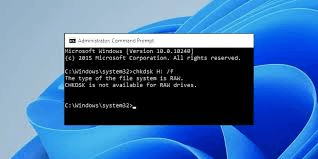
When a storage device suddenly becomes inaccessible and Windows reports that the drive is using the RAW file system, one of the first troubleshooting commands many users try is CHKDSK. However, Windows may respond with an error stating that CHKDSK cannot be used on RAW drives. This situation can be confusing, especially when important photos, documents, videos, or work files are stored on the affected device. Understanding why this happens and what alternatives are available can help you protect your data and avoid making the problem worse.
What Is a RAW Drive?
A RAW drive is a storage device whose file system cannot be properly recognized by the operating system. Windows normally identifies file systems such as NTFS, exFAT, or FAT32. When the file system structure becomes damaged, corrupted, missing, or unreadable, Windows may display the partition as RAW instead.
A RAW condition does not necessarily mean that every file has been permanently deleted. In many cases, the actual data may still exist on the storage device, but Windows cannot understand the file system information required to access it normally.
You may notice several warning signs, including messages asking you to format the drive, an incorrect capacity, missing files, or an inability to open the partition. A RAW drive can occur on internal hard drives, external hard drives, USB flash drives, and SD cards.
Why CHKDSK Is Not Available for RAW Drives
CHKDSK is designed to examine and repair recognized file systems. It can work with supported file systems such as NTFS and FAT32 by checking their structures, identifying errors, and attempting repairs.
The problem is that a RAW drive does not provide Windows with a usable file system structure. Because CHKDSK needs to understand the underlying file system before it can perform its repair operations, it cannot normally repair a partition that Windows identifies as RAW.
This is why users may encounter the message “CHKDSK is not available for RAW drives.” The message does not necessarily mean that the storage device is physically destroyed. Instead, it indicates that CHKDSK does not have the file system information it needs to perform its normal repair process.
Trying different CHKDSK parameters repeatedly is therefore unlikely to solve the underlying RAW problem. More importantly, if the drive contains valuable files, aggressive repair attempts should be avoided until the data has been secured.
Common Causes of a RAW File System
Several problems can cause a previously accessible drive to become RAW. File system corruption is one of the most common causes. This can happen after an improper shutdown, sudden power failure, interrupted file transfer, or system crash.
Bad sectors can also contribute to file system damage. If critical file system information is stored in an area of the disk that becomes unreadable, Windows may no longer be able to identify the partition correctly.
Other possible causes include damaged partition tables, faulty cables, unstable USB connections, malware-related corruption, failing storage hardware, or removing a removable device while data is still being written.
Understanding the possible cause is useful, but the first priority should be protecting important data.
Do Not Format the RAW Drive Immediately
When Windows displays a message asking you to format a RAW drive before using it, formatting may appear to be the easiest solution. However, formatting creates a new file system and can make data recovery more complicated.
If the files stored on the drive are important, avoid formatting the device before attempting data recovery. Do not copy new files to the RAW partition either, because writing additional data can overwrite recoverable information.
The safest approach is usually to stop unnecessary activity on the affected drive and focus on recovering or securing the existing data first.
Use Data Recovery Software Instead
When CHKDSK cannot work with a RAW drive, specialized data recovery software can be a useful alternative. Recovery applications are designed to search storage media for recognizable file structures, partitions, and individual files even when the original file system is damaged.
Depending on the condition of the drive, recovery software may be able to locate documents, images, videos, archives, and other files. A deep scanning feature can be particularly useful when normal partition information is unavailable.
Before using any recovery application, make sure you have enough storage space on another healthy drive to save the recovered files. Recovered data should not be saved back onto the RAW drive because doing so can overwrite other information that may still need to be recovered.
Check the Physical Connection
Sometimes a RAW error is caused by something simpler than severe file system corruption. External hard drives and USB devices can experience connection problems because of defective cables, damaged ports, insufficient power, or faulty external enclosures.
If possible, safely disconnect the device and try a different USB port or a known-good cable. For an external hard drive, connecting it directly to the computer instead of using an unreliable hub may also help.
However, if the drive is making unusual clicking, grinding, or repeated spinning sounds, stop using it. Such symptoms can indicate physical hardware failure, and continued operation may reduce the chances of successful recovery.
Check Disk Management
Windows Disk Management can provide additional information about the affected storage device. It may show the partition as RAW, unallocated, or with an unusual capacity.
This information can help determine whether the problem appears to involve the partition structure or the physical disk. However, avoid deleting partitions, creating new volumes, or formatting the device if you need to recover existing files.
Disk Management is useful for diagnosis, but it should not be treated as a guaranteed repair tool for valuable data.
Consider Creating a Disk Image
If the drive is unstable or showing signs of physical deterioration, creating a sector-by-sector image or clone can be a safer approach than repeatedly scanning the original device.
A disk image provides a working copy that can be analyzed while reducing unnecessary interaction with the original storage media. This approach is particularly valuable when the device contains irreplaceable information.
For a severely damaged drive, professional data recovery services may be more appropriate than software-based recovery.
When Professional Recovery Is Necessary
Software recovery is not always enough. If the drive is physically damaged, repeatedly disconnects, is not detected correctly, reports an incorrect capacity, or produces unusual mechanical noises, professional assistance may be necessary.
Specialized recovery laboratories can use hardware tools and controlled environments to work with damaged storage devices. Although professional recovery can be expensive, it may be worthwhile when the information is more valuable than the cost of the service.
How to Prevent RAW Drive Problems
Prevention is easier than recovery. Always eject external storage devices safely, especially when files are actively being transferred. Avoid sudden power interruptions when possible and maintain reliable backups of important information.
Using more than one backup location can provide additional protection. For example, important files can be stored on a local backup drive and another independent backup location.
It is also useful to monitor aging hard drives and replace storage devices that show warning signs such as frequent errors, slow performance, or unexpected disconnections.
Final Thoughts
The message “CHKDSK is not available for RAW drives” occurs because CHKDSK requires a recognizable file system to perform its normal checking and repair operations. When Windows identifies a partition as RAW, the priority should not be repeatedly forcing CHKDSK to run.
Instead, protect the affected data, avoid formatting, check the physical connection, examine the drive through Disk Management, and consider reputable data recovery software or professional recovery services when appropriate. With the right approach, a RAW drive does not automatically mean that your files are lost forever. Acting carefully and avoiding unnecessary writes can significantly improve the chances of recovering valuable information.



More Stories
Why isCalculator Finance Tools Are Essential Alongside Free Online Calculators
Effortless HEIC to PNG Conversion: Fast Solutions That Work Across All Devices
Fast and Reliable AI Detector Solutions for Advanced Content Analysis