In today’s digital world, efficiency and productivity in document management are crucial for both professionals and students. WPS, a versatile office suite, has become a popular tool for creating, editing, and managing documents. This guide will walk you through using WPS effectively, ensuring you make the most of its features.
Understanding WPS and Its Benefits
Before diving into the steps, it’s important to understand what WPS offers. WPS is an all-in-one office suite that includes Writer, Spreadsheets, and Presentation, similar to other office tools but with unique features that enhance usability. WPS supports multiple file formats, cloud integration, and advanced editing tools. Using WPS effectively can save time, reduce errors, and streamline workflow.
Installing and Setting Up WPS
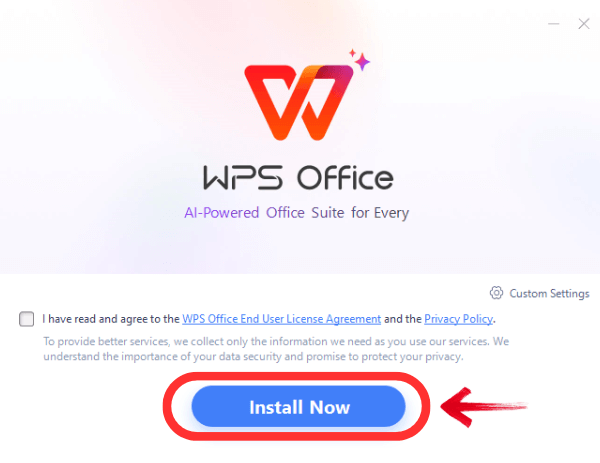
The first step to using WPS effectively is installation. WPS is available for Windows, macOS, Linux, Android, and iOS. Visit the official WPS website to download the version compatible with your device. After installation, launch WPS and create an account or log in with an existing one. This allows you to access cloud features, saving documents online for easy access from any device.
Once logged in, customize your settings. Adjust language preferences, default file locations, and interface themes. These small adjustments make using WPS more comfortable and tailored to your needs.
Navigating the WPS Interface
The WPS interface is user-friendly, but understanding its layout is essential for effective usage. At the top, you will find the ribbon menu, which organizes tools into categories such as Home, Insert, Page Layout, and Review. Each tab contains relevant functions for formatting, inserting elements, or reviewing content.
On the left, the sidebar provides quick access to recent documents and templates. Templates are especially helpful for creating professional-looking documents quickly. At the bottom, the status bar shows details such as page number, word count, and language settings. Familiarity with these elements allows you to navigate WPS efficiently.
Creating and Formatting Documents
Creating a new document in WPS Writer is straightforward. Click on “New” and select either a blank document or a template. Templates range from resumes and reports to business letters and invoices. Using templates can significantly speed up document creation.
Formatting is key to making your documents look professional. Use WPS tools to set font styles, sizes, and colors. Paragraph alignment, line spacing, and indentation can also be adjusted to improve readability. WPS allows you to insert headers, footers, page numbers, and tables, which are essential for structured documents.
Styles and themes in WPS are powerful tools for maintaining consistency. Apply predefined styles for headings and paragraphs to create a uniform appearance throughout your document. This is particularly useful for lengthy reports or presentations.
Editing and Proofreading with WPS
WPS offers several tools to enhance document accuracy. Spelling and grammar checks help eliminate common errors. For more advanced editing, use the track changes feature to monitor modifications, especially when collaborating with others.
The comment feature is also useful for teamwork. Insert comments to provide suggestions or feedback without altering the original text. WPS supports multiple languages, making it suitable for international teams.
Using WPS Spreadsheets for Data Management
WPS Spreadsheets is ideal for handling numbers, budgets, or data analysis. Create a new spreadsheet and enter your data in rows and columns. Use formulas to automate calculations, such as SUM, AVERAGE, or IF statements. WPS supports advanced functions like VLOOKUP and pivot tables, which are useful for analyzing large datasets.
Formatting in spreadsheets is also important. Highlight cells, apply borders, and use conditional formatting to make data easier to interpret. Charts and graphs can be created directly within WPS Spreadsheets to visualize trends and patterns effectively.
Creating Presentations with WPS
WPS Presentation is a powerful tool for creating slideshows. Start by selecting a template or a blank presentation. Add slides with different layouts to organize content logically. Use WPS tools to insert images, charts, tables, and multimedia elements to make presentations engaging.
Animations and transitions can enhance the visual appeal but should be used sparingly to maintain professionalism. WPS also allows collaboration on presentations, enabling multiple users to edit slides simultaneously, which is perfect for team projects.
Leveraging Cloud Features for Accessibility
WPS offers cloud integration, allowing you to store documents online. Saving files to the cloud ensures access from any device and provides a backup in case of hardware failure. The cloud also facilitates sharing and collaboration, as documents can be shared via links with specific permissions.
WPS cloud features include version history, which tracks changes over time. This is invaluable when working on documents with multiple collaborators, ensuring no work is lost and changes can be reverted if needed.
Tips for Maximizing Efficiency in WPS
To use WPS effectively, consider these tips:
- Keyboard Shortcuts: Learn commonly used shortcuts to speed up tasks. For example, Ctrl+C and Ctrl+V for copy and paste, or Ctrl+S for quick saving.
- Templates: Utilize templates to avoid starting from scratch for recurring tasks.
- Integration: Connect WPS with other tools like email or cloud storage for seamless workflow.
- Regular Updates: Keep WPS updated to access the latest features and security enhancements.
- Customization: Tailor the interface and toolbars to your frequent tasks for quick access.
Collaborating with WPS
Collaboration is made easy with WPS. Share documents with colleagues or classmates by granting view or edit permissions. Real-time collaboration allows multiple users to work on the same document simultaneously, improving efficiency and reducing miscommunication. Use the comment and track changes features to manage feedback effectively.
Security and Document Protection in WPS
Protecting your documents is crucial, especially for sensitive information. WPS allows you to encrypt documents with passwords, restrict editing, and add digital signatures. Regularly back up your files to the cloud or external storage to prevent data loss. Security features in WPS ensure your work remains confidential and intact.
Conclusion
Using WPS effectively involves understanding its interface, mastering its tools, and leveraging its features for productivity. From creating documents and spreadsheets to designing presentations and collaborating in the cloud, WPS provides a comprehensive solution for office tasks. By following this step-by-step guide, you can enhance efficiency, maintain professionalism, and make the most of WPS in your daily work or academic life.
WPS is not just a software suite; it’s a productivity partner that, when used correctly, can transform the way you manage documents, analyze data, and create presentations. Start implementing these steps today and experience the full potential of WPS.




More Stories
How Using Thermal Imaging for Electrical Systems Boosts Safety and Efficiency
Boost Team Performance with WPS Tools
Getting Started with WPS Download: Your Complete Guide to WPS下载 Today